---
title: "Make Your First Box"
description: "Make one shipping box from start to finish and download it as a PDF."
url: "https://cad.packative.one/help/get-started/quick-tour/"
language: "en"
---
# Make Your First Box
In about ten minutes you make a shipping box at your own size and download its dieline
as a PDF. The dieline is the flat drawing of your box, with lines for cutting and
folding. This example uses FEFCO 0201, the most common corrugated shipping box.
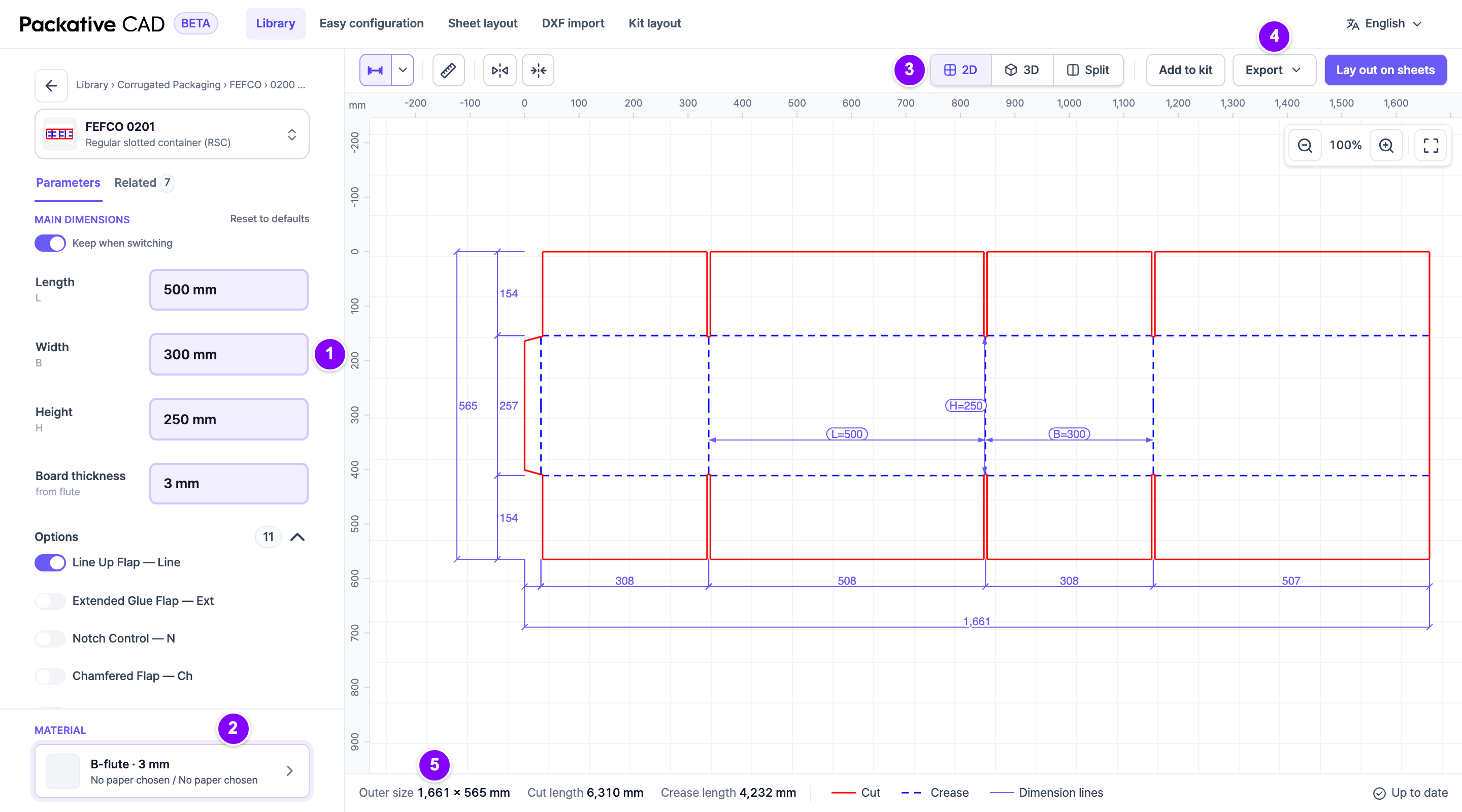
The box screen with your sizes and board on the left and the dieline on the right. The numbers match the steps below.
## Steps
1. Open `https://cad.packative.one` and select **Continue with Google**.
2. Open **Library** in the bar at the top.
3. In the search box at the top left, type `0201`.
4. Select the card **FEFCO 0201 — Regular slotted container (RSC)**. The box screen
opens.
5. 1 Under **Main dimensions**, type the **Length**, **Width** and **Height** in
millimetres, for example 500, 300 and 250. The drawing changes as you type. The
small letters under the names (L, B, H) are the names used on the drawing. B is the
width.
6. 2 Under **Material** at the bottom left, select the board. In the window that
opens, select a **Flute**, for example **B-flute · 3 mm**, then select **Done**. The
flute is the wavy middle layer of corrugated board, and it sets how thick the board
is. **Board thickness** fills in from the flute, so leave it as it is.
7. 3 Optional: select **3D** in the bar above the drawing to see the box folded. Select
**2D** to go back.
8. 4 Select **Export** at the top right, above the drawing.
9. Select the **PDF** format card.
10. Select **Export PDF**. The file downloads to your computer.
The PDF is at true size, so you can print it 1:1 or send it to your printer.
## Good to Know
- Ask your printer or die maker whether your sizes are inside or outside sizes.
- 5 The bottom bar shows the **Outer size**: the size of the flat box before folding.
- Each step uses a few credits. Browsing the library is free. See
[Sign In and Credits](https://cad.packative.one/help/guide/account/).
- To share this box, copy the page address. It holds the box style and your sizes.
!!! tip "Change a size on the drawing"
Select a measurement on the drawing, type the new value and confirm with ++enter++.
!!! warning "Check before you make a die"
Not every dieline has been tested in production. Check the sizes and the file with
your die maker before a cutting tool is made.
## What Next
- Need a file for your die maker or for artwork? See
[Download Files for Print](https://cad.packative.one/help/guide/export/) for DXF and Illustrator files.
- Want to know how many boxes fit on a sheet? See
[Fit Boxes on a Sheet](https://cad.packative.one/help/guide/sheet-layout/).