---
title: "See Your Box in 3D"
description: "See your box folded in 3D, try your artwork on it and download a picture or model."
url: "https://cad.packative.one/help/guide/3d/"
language: "en"
---
# See Your Box in 3D
The 3D view folds your dieline into a box. You can turn it, try your print design on it
and download a picture or a 3D model to share.
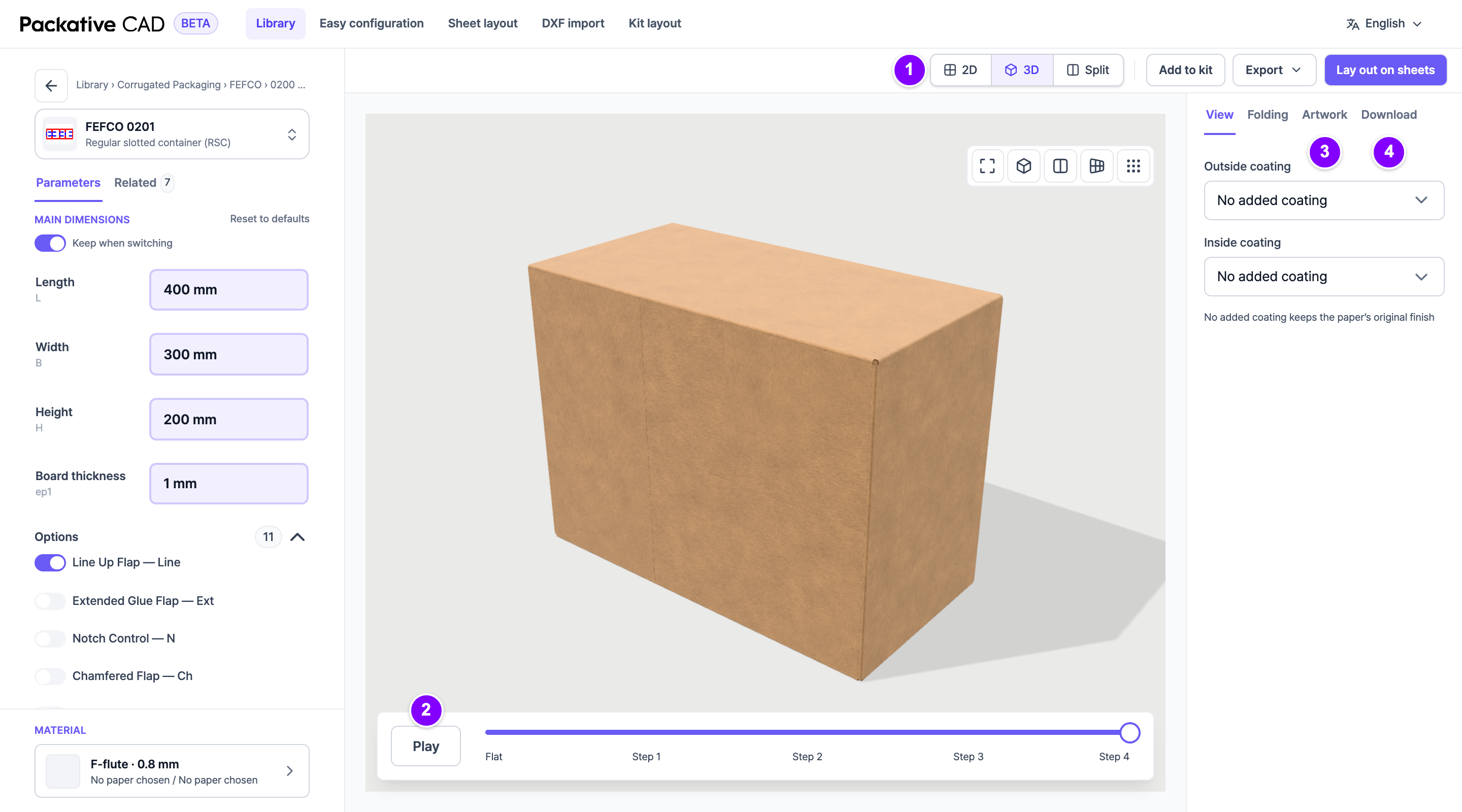
The folded box in the 3D view, with the View, Folding, Artwork and Download tabs on the right. The numbers match the steps below.
## See the Folded Box
1. Open a box style and set your size.
2. 1 In the bar above the dieline, select **3D**. **Split** shows the flat dieline and the
box side by side.
3. 2 Drag the box to turn it. Select **Play** to watch it fold, or drag the slider
below the box from **Flat** to the last step.
4. 3 To try your print design, open the **Artwork** tab in the right panel. Select
**Outside artwork**, then select your file (PNG, JPEG, WebP, SVG or PDF).
5. 4 To share the box, open the **Download** tab and select **Download PNG**.
!!! warning "Check the folding"
The app works out the folding by itself, and nobody checks every box style by hand.
Check the folded box before you rely on it.
## Good to Know
- The box takes its colours from the papers you selected under
[Material](https://cad.packative.one/help/guide/materials/).
- In the **View** tab you can add a **Matte** or **Glossy** coating to each side.
- If your artwork reads the wrong way, select **Mirror artwork**.
- Your artwork stays in your browser. It is never uploaded.
- Artwork made on the PDF you downloaded lines up with the box by itself.
- The **Download** tab offers **Download PNG** (a picture of the current view),
**3D model (GLB)** for 3D apps, **AR model (USDZ)** for iPhone or iPad, and
**Web viewer (HTML)**, a web page that shows the box in any browser.
- **Download PNG** uses 1 credit for each picture. **3D model (GLB)**, **AR model
(USDZ)** and **Web viewer (HTML)** use 10 credits each time, like any other download.
For what uses credits, see [Sign In and Credits](https://cad.packative.one/help/guide/account/).
- Flat pieces, such as labels, do not fold, so they have no 3D view.
## If Something Goes Wrong
- **A flap folds the wrong way.** In the **Folding** tab, select the crease (the fold line) and change
its **Angle (°)**. **Reset to defaults** undoes your changes. Please also tell the
Packative team.
- **"This dieline has no fold lines we can follow."** The dieline has no fold lines, so
it cannot fold. For your own file, see [Use Your Own Dieline File](https://cad.packative.one/help/guide/dxf-import/).
- **The 3D view does not show.** Use a current Chrome, Edge or Safari.