---
title: "Use Your Own Dieline File"
description: "Open a dieline file from another CAD program and use it in Packative CAD."
url: "https://cad.packative.one/help/guide/dxf-import/"
language: "en"
---
# Use Your Own Dieline File
You can open a dieline drawn in another CAD program, as a DXF file. Then you can fold it
in 3D, fit it on sheets, add it to a kit or download it in another format.
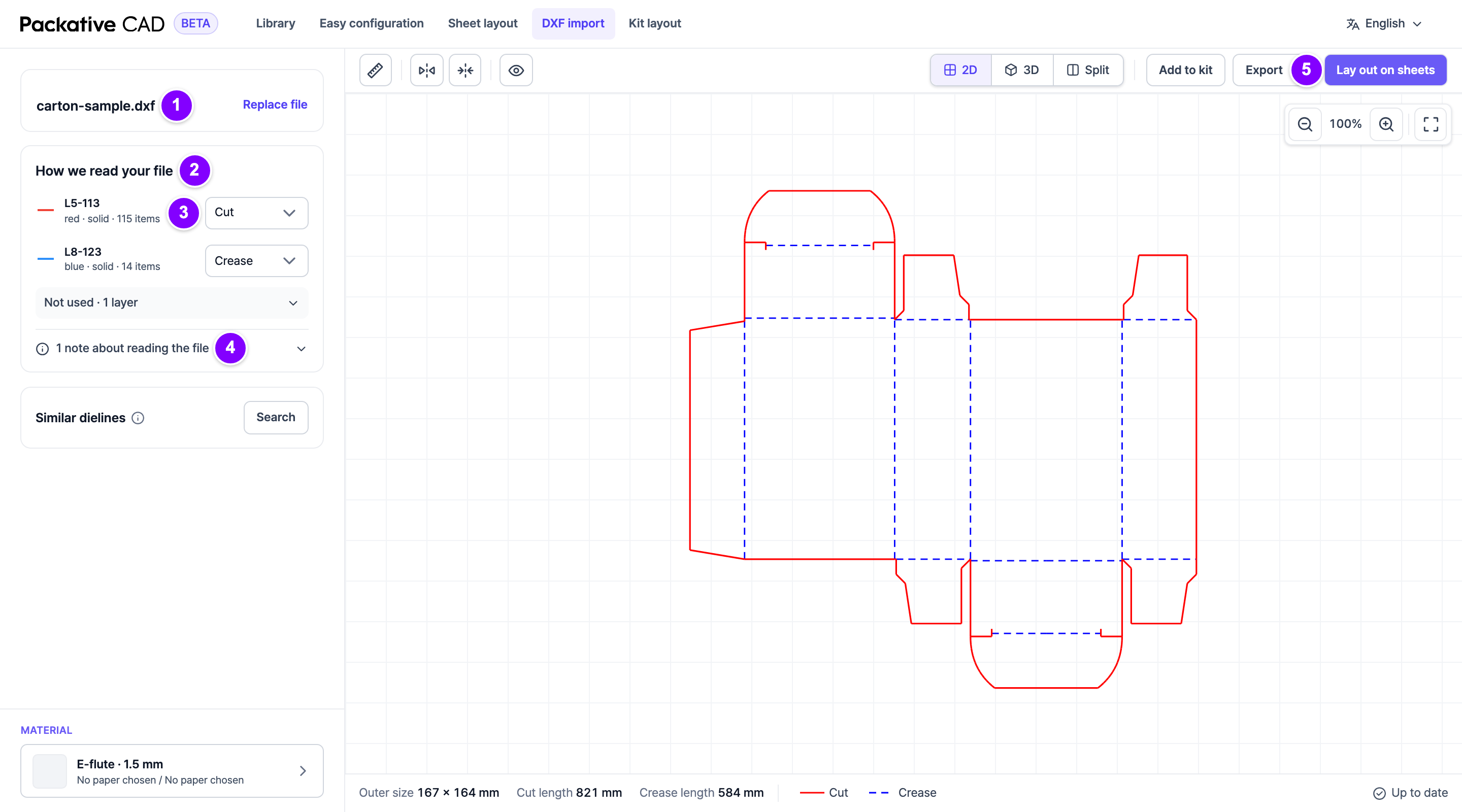
DXF import with the file card, the list of how each line was read, and the drawing. The numbers match the steps below.
## Steps
1. 1 Open **DXF import** and select **Choose a DXF file**, or drop the file on the screen.
The file card shows the file name. **Replace file** opens another file.
2. If the app had to guess the units, the file card says so. Then check that the size
is right.
3. Read any problems under the file card, such as "No cut lines were found."
4. 2 Look at **How we read your file**. It lists each group of lines and what the app read
it as: cut or crease (a fold line). Groups the app does not use are under
**Not used**.
5. 3 If a group is wrong, change the choice next to it, for example from **Crease** to
**Cut**. **Reset** undoes your change.
6. 4 Open the notes at the bottom of the card, for example **1 note about reading the file**.
They say what the app changed, such as "The drawing frame was left out."
7. 5 Use the drawing: **3D**, **Lay out on sheets**, **Add to kit** or **Export**.
## Your File Is OK When
- Cut lines are red and fold lines are blue.
- The **Outer size** at the bottom matches your drawing.
- No warning note shows.
## Good to Know
- The app does not store your file. It reads it only while it works on your request.
- The file can be up to 3 MB.
- **What was left out** shows the parts the app did not use, such as a drawing frame or
notes.
- If the file has several separate pieces, the **Pieces** card lists them. You can give a
piece another board.
- A drawing with no fold lines cannot be shown in 3D.
- **Download the original file** gives you the file back unchanged.
- Reading a file uses credits. See [Sign In and Credits](https://cad.packative.one/help/guide/account/).
!!! tip "For a clean import"
- Put cuts and creases on separate layers, named for what they are (for example
`CUT` and `CREASE`).
- Draw in millimetres.
- Remove title blocks and frames before you save the file.
- Close the cut outline.
## If Something Goes Wrong
| Message | What to do |
|---|---|
| "No cut lines were found." | Check that the cut outline is in the file. |
| "The drawing is very small" or "very large" | The units may be wrong. Check them in your CAD program. |
| "Export it again as DXF (R2010 or later) and upload it." | Save the file again as a newer DXF version. Your CAD program offers it when you save as DXF. |
| "This drawing has too many details to lay out." | Simplify the drawing and try again. |