---
title: "Fit Boxes on a Sheet"
description: "See how many copies of one box fit on each of your sheet sizes."
url: "https://cad.packative.one/help/guide/sheet-layout/"
language: "en"
---
# Fit Boxes on a Sheet
**Sheet layout** shows how many copies of one dieline fit on each of your press sheets.
You enter your sheet sizes, and the app lists the results, best first.
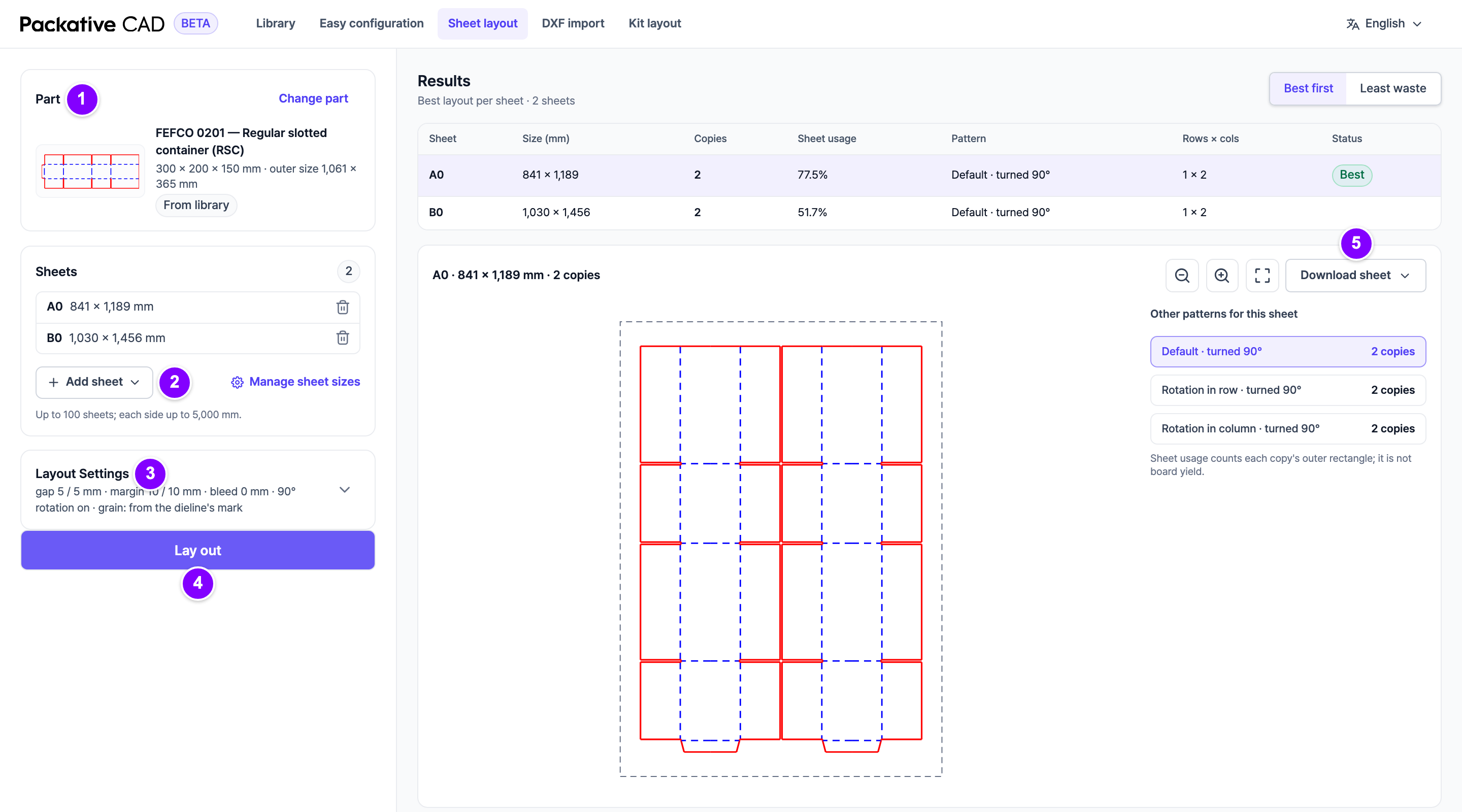
Sheet layout with the part and the sheet sizes on the left and the best layout on the right. The numbers match the steps below.
## Steps
1. 1 Open your dieline and select **Lay out on sheets**. The **Part** card shows it. With
no part yet, select **From library** or **From DXF**.
2. The **Sheets** list starts with the sheets of your last layout. 2 Select
**Add sheet** to pick more from your sheet sizes, or **Custom size** in the menu for a
one-off size. Remove a sheet with its bin icon. To choose which sheets the menu offers,
select **Manage sheet sizes** (see [Manage Your Sheet Sizes](https://cad.packative.one/help/guide/sheet-sizes/)).
3. 3 Open **Layout Settings** if you want to change the space between copies
(**Gap X (mm)**, **Gap Y (mm)**) or the free border (**Margin X (mm)**,
**Margin Y (mm)**).
4. 4 Select **Lay out**.
5. In **Results**, select a row to see that sheet's layout.
6. 5 Select **Download sheet** and a format: **DXF**, **PDF**, **SVG** or **PNG**.
## Reading the Results
| Column | Meaning |
|---|---|
| **Copies** (or **Boxes per sheet**) | How many fit on the sheet. |
| **Sheet usage** | How much of the sheet the boxes cover. It is not the board yield. |
| **Pattern** | How copies sit: all the same way, or every second one turned to interlock. |
| **Status** | **Best**, or a note such as **Not finished in time**. |
**Other patterns for this sheet** shows the other options and their counts.
## Good to Know
- You can enter up to 100 sheets, each side up to 5000 mm.
- In the sheet sizes and the layout settings, ++enter++ moves to the next number and
++shift+enter++ goes back.
- Sheet layout and [Print Several Parts Together](https://cad.packative.one/help/guide/kit-layout/) share the same sheets
and settings.
- **Grain on the sheet** is the direction the grain or flutes run on your board. If
your dieline has a grain mark, the app follows it.
- A dieline with several pieces is laid out as full boxes, so the results count
**Boxes per sheet**.
- Each **Lay out** and each download uses credits. Looking at results is free. See
[Sign In and Credits](https://cad.packative.one/help/guide/account/).
!!! tip
Changed the sheets or settings? The results say so. Select **Lay out again**.
## If Something Goes Wrong
- **Not finished in time**: the search stopped after 30 seconds. A better layout may
exist. Try fewer sheets.
- **Show sheets where nothing fits (*n*)** lists the sheets with no copies and the
reason, for example "Part larger than sheet".