Print Several Parts Together
A kit is a set of different parts that belong together, such as a lid and a base, or a box and two inserts. Kit layout shows how many complete kits fit on each of your sheet sizes.
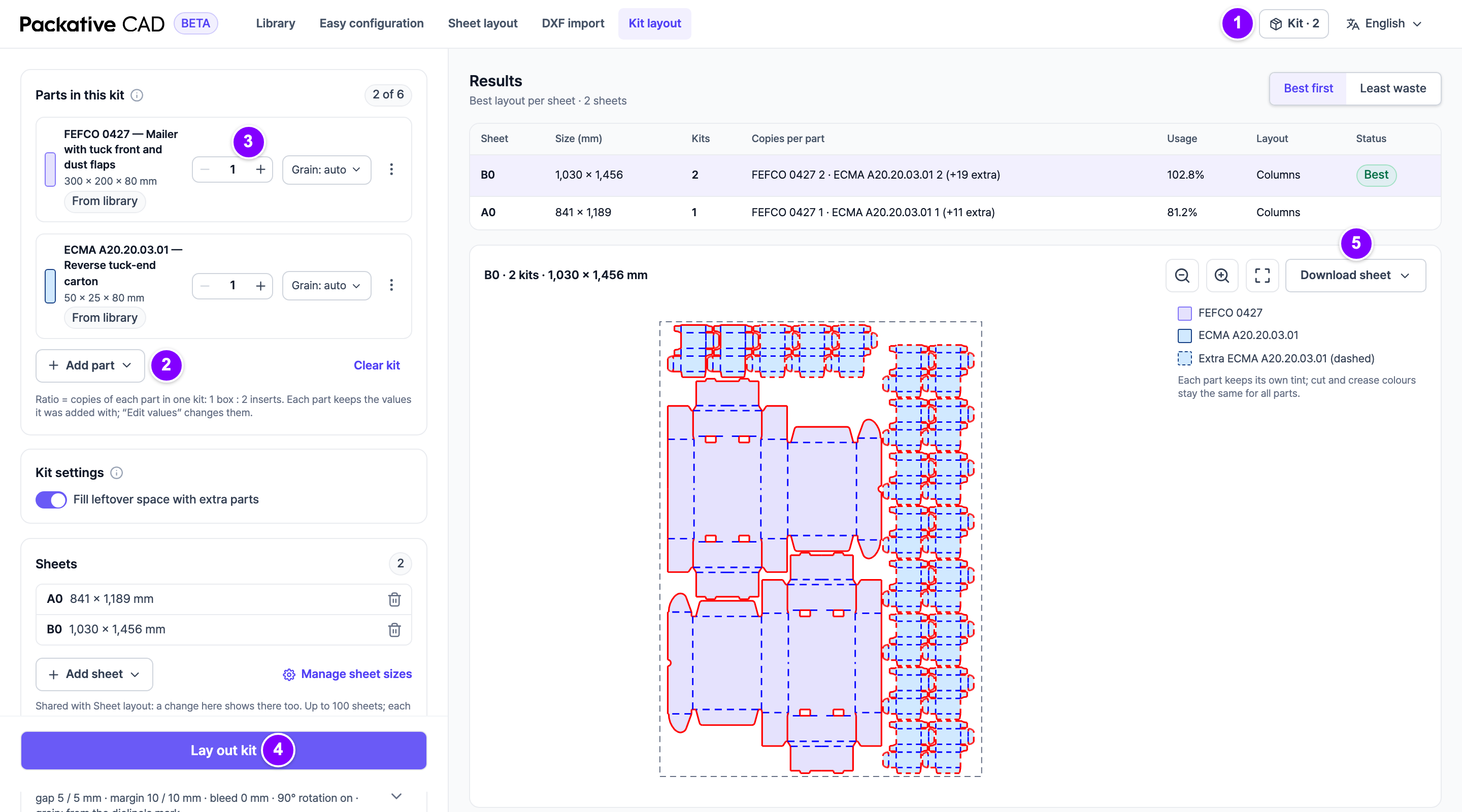
Steps
- Open a dieline and select Add to kit in the bar above the dieline. You can also select Add to kit… on a library card.
- 1 Select Kit · n at the top right to open Kit layout.
- 2 Select Add part to add more: From the library…, From a DXF file… or Current dieline.
- 3 In Parts in this kit, set the ratio of each part with - and +. For "1 box : 2 inserts", set the box to 1 and the insert to 2.
- Check the Sheets list, then 4 select Lay out kit.
- Select a sheet in the results to see it. 5 Then select Download sheet to download it as DXF, PDF, SVG or PNG.
Reading the Results
| Column | Meaning |
|---|---|
| Kits | Complete kits per sheet. |
| Copies per part | How many of each part are on the sheet. |
| Usage | How much of the sheet the parts cover. |
| Status | A note when the sheet is simplified or not finished in time. |
Good to Know
- A kit holds up to 6 parts, all on one board.
- The kit stays in your browser, even after a reload.
- Kit layout uses the same sheets and settings as Fit Boxes on a Sheet. Add sheet offers the sheets of Manage Your Sheet Sizes.
- Fill leftover space with extra parts in Kit settings adds extra copies in free space. They show as "+n extra" and do not count as kits.
- Each Lay out kit and each download uses credits. See Sign In and Credits.
If Something Goes Wrong
- "No complete kit fits on these sheets": add a larger sheet, lower a ratio or remove a part.
- Simplified layout: the search hit its limit, so more kits may fit. Use fewer parts or lower ratios.
- Not finished in time: the search stopped after 30 seconds. Try fewer sheets.