Download Files for Print
When your box is ready, you download its dieline as a file. You send this file to your die maker, your printer or the designer who makes the artwork.
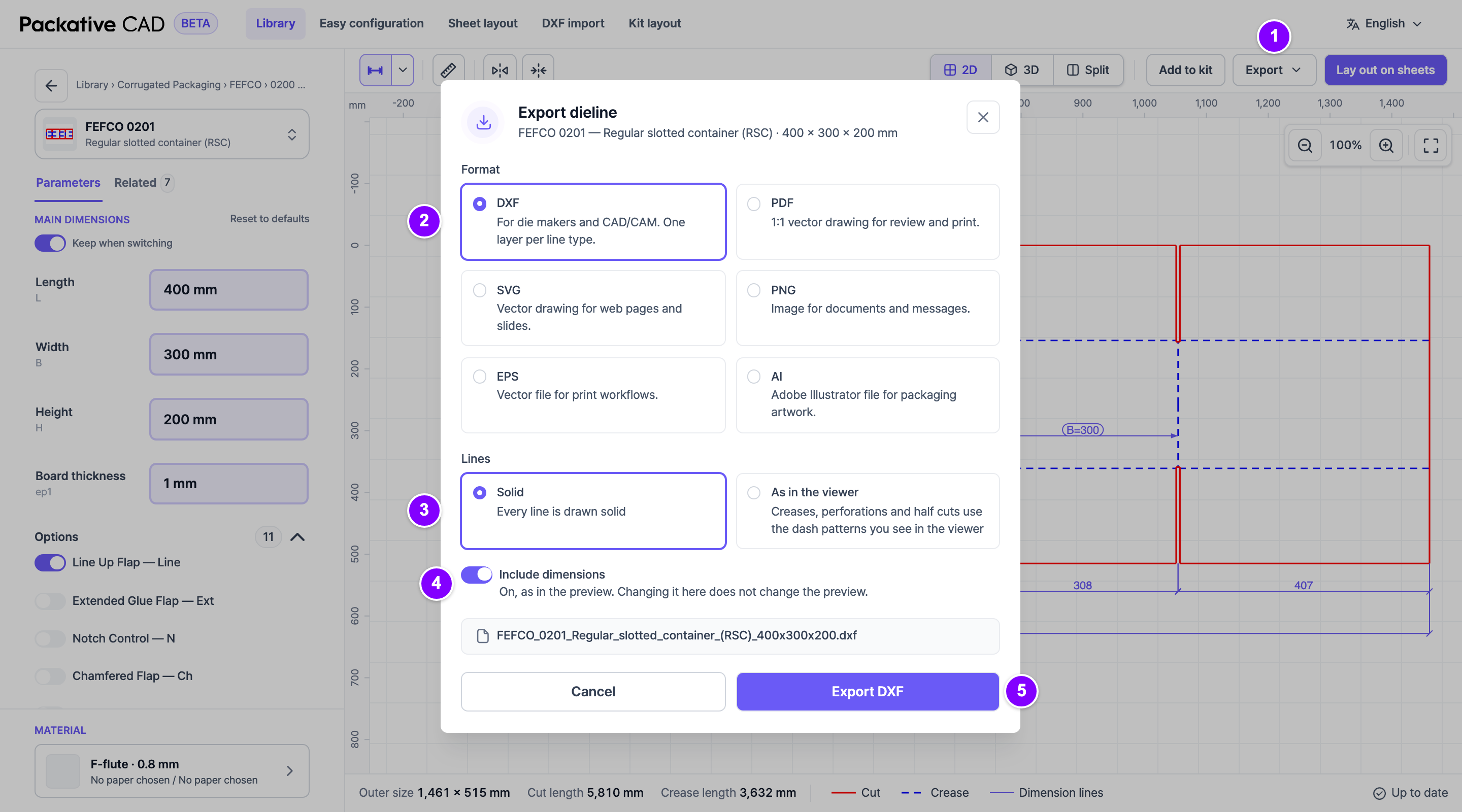
Download the Dieline
- 1 In the bar above the dieline, select Export.
- 2 Select a Format card. The table below helps you decide.
- 3 Under Lines, select Solid for plain lines, or As in the viewer for dashed fold lines. For a customer PDF, As in the viewer shows fold lines dashed, like on screen.
- 4 Select Include dimensions if you want the sizes on the file.
- 5 Select Export DXF (the label follows your format, for example Export PDF). The file downloads with your box name and sizes.
Which Format to Use
| You send it to | Format |
|---|---|
| A die maker (the company that makes the cutting tool) | DXF |
| A designer who works in Adobe Illustrator | AI |
| Someone who checks or prints it at full size | |
| A printer who asks for EPS | EPS |
| A web page or a slide | SVG |
| An email or a chat message | PNG |
DXF, PDF, AI and EPS are true to scale, so you can measure on them. SVG and PNG are pictures for sharing.
Good to Know
- The file uses the same sizes, board and flip that you see on screen.
- Lines have the same colours as on screen: cut lines red, fold lines blue.
- The AI file has an empty
ARTWORKlayer for the print design. Hide or delete theDIMENSIONSlayer before you send the file to print. - Sheet layouts and kit layouts have their own Download sheet menu. See Fit Boxes on a Sheet.
- 3D pictures and models are in the 3D view. See See Your Box in 3D.
- On the hosted app every download uses credits. See Sign In and Credits.
Check before a cutting tool is made
This is a free beta, and not every dieline has been tested in production. Check the sizes and the file with your die maker first.
If Something Goes Wrong
If the file cannot be made, the dialog keeps your choices. Select Try again.