Use Your Own Dieline File
You can open a dieline drawn in another CAD program, as a DXF file. Then you can fold it in 3D, fit it on sheets, add it to a kit or download it in another format.
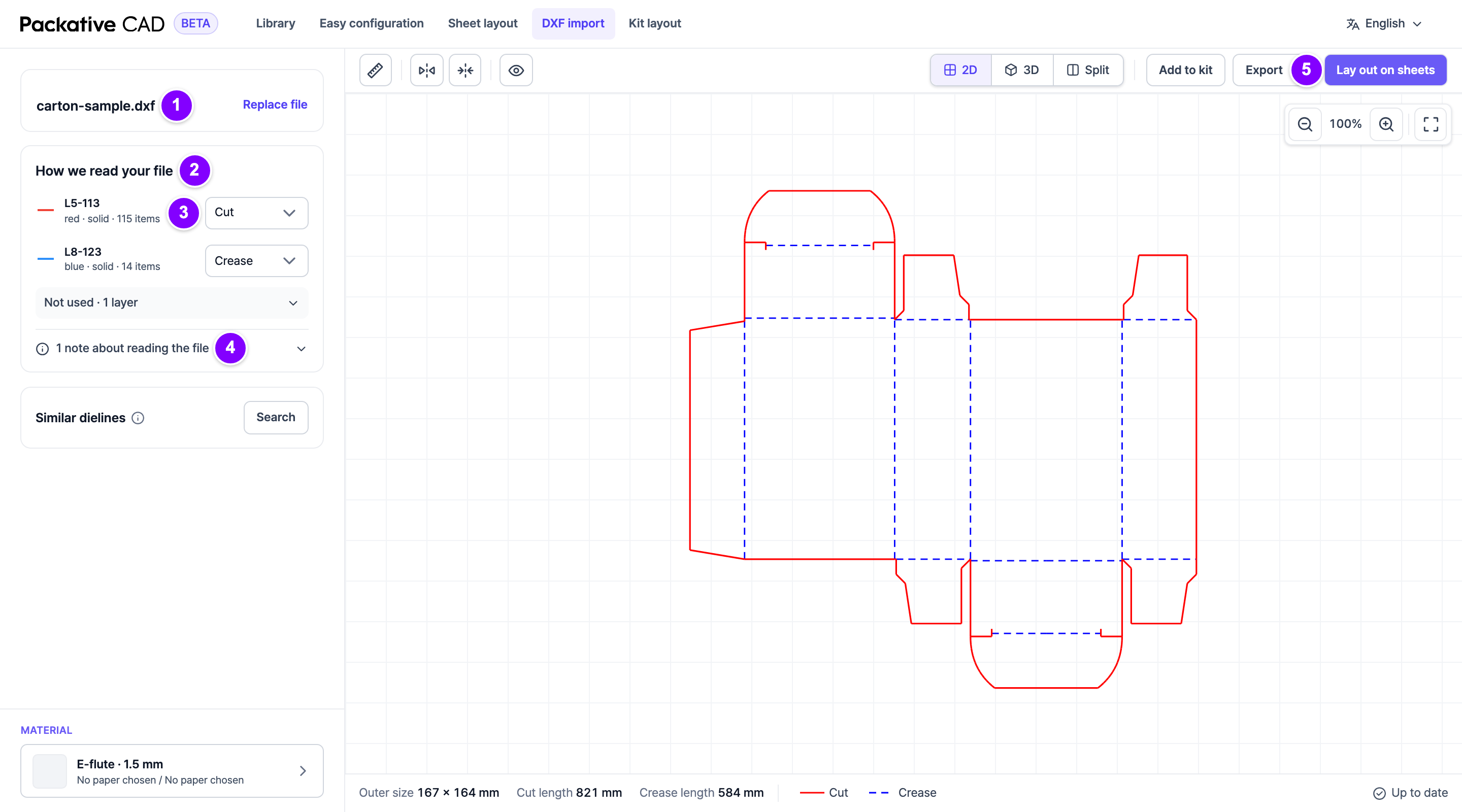
Steps
- 1 Open DXF import and select Choose a DXF file, or drop the file on the screen. The file card shows the file name. Replace file opens another file.
- If the app had to guess the units, the file card says so. Then check that the size is right.
- Read any problems under the file card, such as "No cut lines were found."
- 2 Look at How we read your file. It lists each group of lines and what the app read it as: cut or crease (a fold line). Groups the app does not use are under Not used.
- 3 If a group is wrong, change the choice next to it, for example from Crease to Cut. Reset undoes your change.
- 4 Open the notes at the bottom of the card, for example 1 note about reading the file. They say what the app changed, such as "The drawing frame was left out."
- 5 Use the drawing: 3D, Lay out on sheets, Add to kit or Export.
Your File Is OK When
- Cut lines are red and fold lines are blue.
- The Outer size at the bottom matches your drawing.
- No warning note shows.
Good to Know
- The app does not store your file. It reads it only while it works on your request.
- The file can be up to 3 MB.
- What was left out shows the parts the app did not use, such as a drawing frame or notes.
- If the file has several separate pieces, the Pieces card lists them. You can give a piece another board.
- A drawing with no fold lines cannot be shown in 3D.
- Download the original file gives you the file back unchanged.
- Reading a file uses credits. See Sign In and Credits.
For a clean import
- Put cuts and creases on separate layers, named for what they are (for example
CUTandCREASE). - Draw in millimetres.
- Remove title blocks and frames before you save the file.
- Close the cut outline.
If Something Goes Wrong
| Message | What to do |
|---|---|
| "No cut lines were found." | Check that the cut outline is in the file. |
| "The drawing is very small" or "very large" | The units may be wrong. Check them in your CAD program. |
| "Export it again as DXF (R2010 or later) and upload it." | Save the file again as a newer DXF version. Your CAD program offers it when you save as DXF. |
| "This drawing has too many details to lay out." | Simplify the drawing and try again. |