Manage Your Sheet Sizes
Sheet sizes is your list of press sheets. The Add sheet menu in Fit Boxes on a Sheet and Print Several Parts Together offers the sheets you keep here, so you pick a sheet instead of typing its size each time.
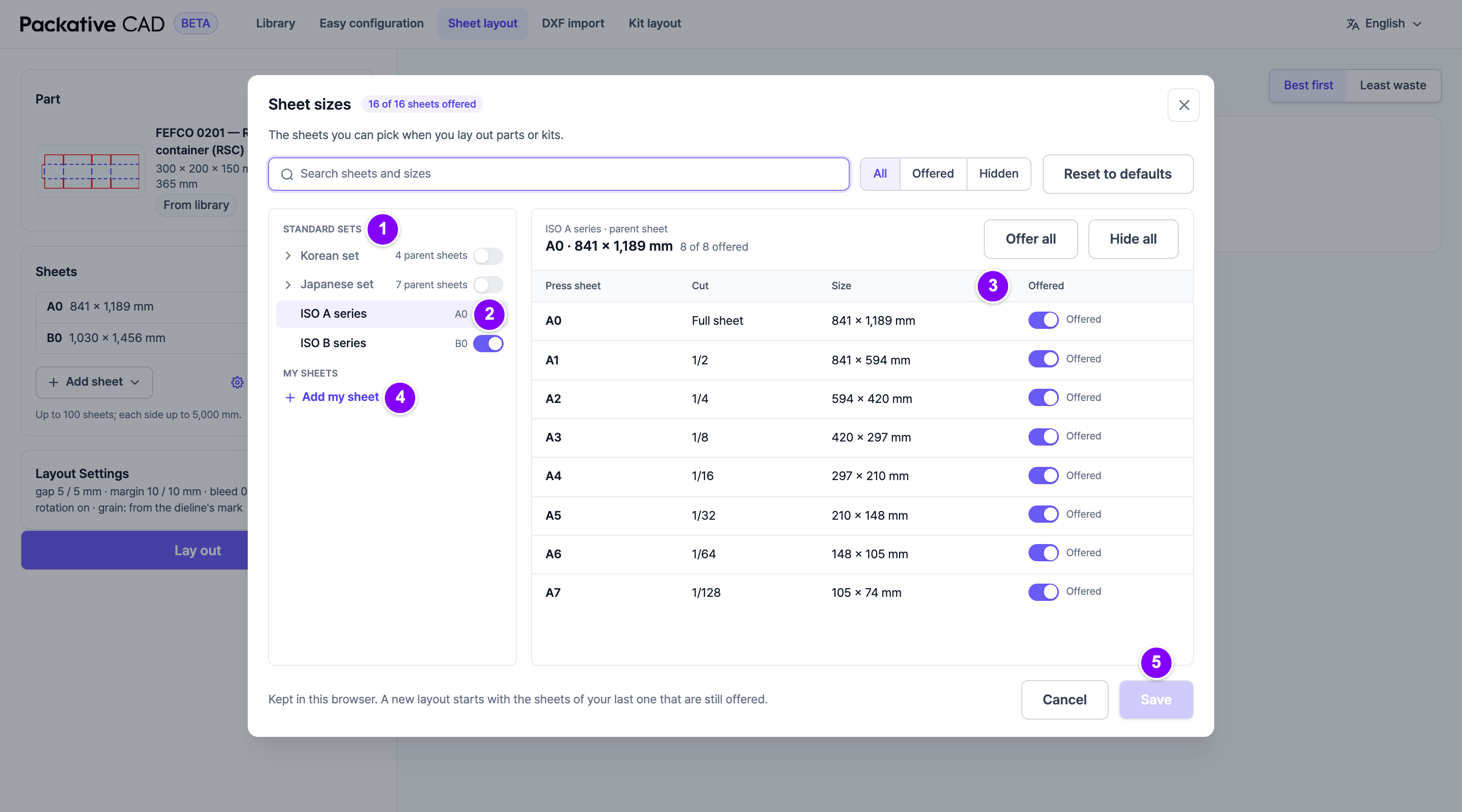
Steps
- On the Sheet layout or Kit layout screen, select Manage sheet sizes under the Sheets list.
- 1 Under Standard sets, turn on each set you use: Korean set, Japanese set, ISO A series or ISO B series. A set that is off offers no sheets.
- 2 Select a parent sheet. On the right you see its cuts: the Full sheet and its parts, each with its Size.
- 3 Under Offered, turn off the sheets you never print on. Offer all and Hide all change every cut of the parent sheet at once.
- 4 To add a sheet of your own, select Add my sheet. Type a Code, a Name (optional) if you like, the Width (mm) and the Height (mm), and select Add.
- 5 Select Save. The Add sheet menu uses your sheets at once.
Pick Sheets for a Layout
- Select Add sheet under Sheets. The menu lists the sheets you offer; a tick shows the ones already in this layout. Select a sheet to add it, or select it again to take it out. Select all and Clear all do the whole list.
- Type in the search box to find a sheet by its name or size.
- Custom size at the bottom of the menu adds a sheet of any size for this layout only. It shows Custom; the save icon next to it (Save to my sheets) keeps the size as one of your own parent sheets.
Your Own Parent Sheets
- The app makes the cuts for you: halves, quarters, eighths and sixteenths, each cut halving the longer side.
- Each code must be new. If a cut of your sheet would have the code of another sheet, the app says which one.
- Your own sheets are listed under My sheets. Use the pencil icon to change one, or the bin icon to delete it. Layouts that already use its sheets keep them.
Good to Know
- The first time, the sets follow your language: Korean set in Korean, Japanese set in Japanese, and ISO A series and ISO B series in every language.
- A new layout starts with the sheets of your last layout that you still offer. With none, it starts with up to four full sheets of the sets that are on.
- A sheet in a layout that you no longer offer shows Not offered in your sheet sizes. Select Offer again to offer it again.
- Show filters the list: All, Offered or Hidden.
- Reset to defaults sets the sets, offered sheets and start sheets back to the defaults for your language. My sheets stay.
- Your sheet sizes are kept in this browser. In another browser or on another computer, you start with the defaults.